
Firestick third-party apps are not all covered by a blanket ban. Amazon says its unlicensed-content enforcement affects identified apps, rather than every other app. Separately, Vega devices restrict ordinary app installation to the Amazon Appstore, with a distinct route for developer testing. Before deciding what has happened to your app, identify your device, read the exact warning, and check the developer’s supported installation options.
On this page
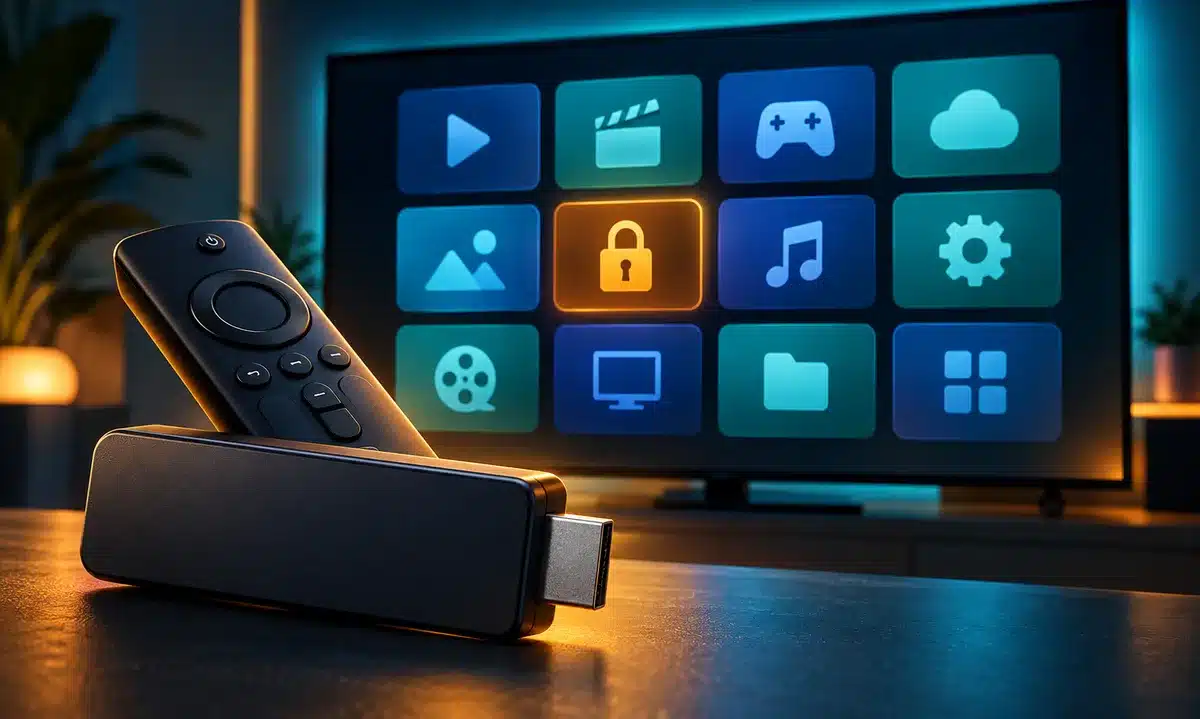
Are Firestick third-party apps all being banned?
No. The useful question is whether you are seeing an app-specific restriction, a device compatibility limit, or a problem that has not yet been diagnosed. Amazon’s staff FAQ about unlicensed-content apps describes targeted enforcement. It does not announce that every app made by another company is forbidden.
For this guide, third-party means an app made by someone other than Amazon. Sideloading describes an installation route outside the store. Keeping those ideas separate makes the news easier to interpret: an app can be made by another developer and still be distributed through Amazon’s store. An installation restriction therefore needs more detail than a headline saying that all apps are banned.
This explainer addresses the policy question behind searches for Firestick third-party apps. It is not a list of blocked packages, a promise to restore an unavailable app, or a claim that we tested every Fire TV model.
Firestick third-party apps: 3 important distinctions
1. An identified app can be disabled without every app being banned
The Amazon staff FAQ says the measures concern apps identified as using or providing access to unlicensed content. Treat that explanation as Amazon’s stated basis for its enforcement, rather than an independent determination about a particular app or subscription. If your screen displays an unlicensed-content notice, preserve the wording before seeking clarification.
Do not infer that another app has been approved simply because it still opens. Equally, do not infer that every third-party application has been removed because one application is disabled. The supported conclusion depends on the notice and the particular app, not on a video title or an unverified list shared online.
2. Consumer installation on Vega follows a different rule
In an October 2026 Amazon Developer Community clarification, Amazon says Vega apps are distributed through the Amazon Appstore and ordinary installation outside it is not supported. This is a platform distribution rule, separate from the targeted unlicensed-content policy.
That distinction matters when researching Firestick third-party apps for a new purchase. Confirm that the app you want is available for the exact device before paying for hardware or a subscription. Do not rely on a tutorial recorded on a different Fire TV device as proof that its installation steps will work on yours.
3. Developer testing is a separate, limited workflow
The same community clarification reserves Vega developer options for registered developers actively building and testing apps for Appstore publication. Amazon’s current Vega testing documentation describes sideloading development builds through Developer Mode. That documentation concerns development, not a general consumer entitlement to install any downloaded app.
This is why absolute statements that Vega has no development installation route are misleading too. A consumer installation limit and a controlled testing route can both exist. If you develop an app, follow the current official requirements; if you want to watch content, ask its developer about a supported consumer release for your model.
How to check Firestick third-party apps on your device
Use the following checklist to organize the problem before changing settings. These are suggested information-gathering steps, not a tested repair for your particular device.
- Record the exact model and software information. Include the generation where you can find it. Compare those details with the app developer’s device requirements instead of relying on the general name Fire Stick.
- Capture the complete message. Distinguish an explicit policy notice from an app missing in search, an installation that fails, or playback that stops after the app opens. Record what happened without assigning an unconfirmed cause.
- Check the official distribution route. Look for the app’s supported store listing and the developer’s current compatibility statement. Ask about your specific model if the instructions do not identify it.
- Keep a short support note. Include the app name, version if available, installation source and the action that produced the message. Avoid publishing account details or access credentials with a screenshot.
For example, a useful hypothetical note is: the app installed from the store opens, but a separate app shows an unlicensed-content notice. That describes two observations. It does not establish that the whole device is banned or that changing internet providers would resolve the notice.
If you need help with your service or account, our contact page provides the site’s contact options. Include your device details and the exact message so the recipient can distinguish an account question from an app compatibility question.
Why older Fire OS instructions need a compatibility check
Amazon’s Fire OS development guide describes Fire OS as Android-based and maintaining Android app compatibility. Its separate app installation guide documents using ADB to install and run a developer’s app for testing before Appstore submission. Those pages describe a development context; they are not a promise that every consumer app works on every Fire TV.
When reading older advice about Firestick third-party apps, check the operating system as well as the model name. Do not transfer developer commands or old menu instructions to a device unless the current documentation covers it. Ask for a supported build rather than assuming that an installation file intended for another platform is interchangeable.
What this means for your next decision
For Firestick third-party apps, the next useful action depends on the evidence. An explicit app-policy notice calls for clarification about that application. A Vega compatibility question calls for checking its supported Appstore release. An unexplained crash or playback failure needs its own diagnosis before you label it a ban.
Keep the model, operating system, app and warning together when asking for help. Do not replace hardware or buy another subscription solely because a broad headline says everything is blocked. First ask whether the app developer supports the combination you actually own.
Sources were checked for this article. Policies, software and app availability can change, and the linked official guidance should be checked again when a new message appears. The conclusion is specific: identified-app enforcement and Vega distribution limits are real restrictions, but they do not support the claim that all Firestick third-party apps have been banned.