
To investigate Wi-Fi buffering on Google TV, replay the same video after each change: confirm the selected network, restart the streaming device, adjust its wireless connection, and compare a wired connection if your hardware supports one. Treat each result as a clue, not proof that your internet provider or streaming service is at fault.
On this page
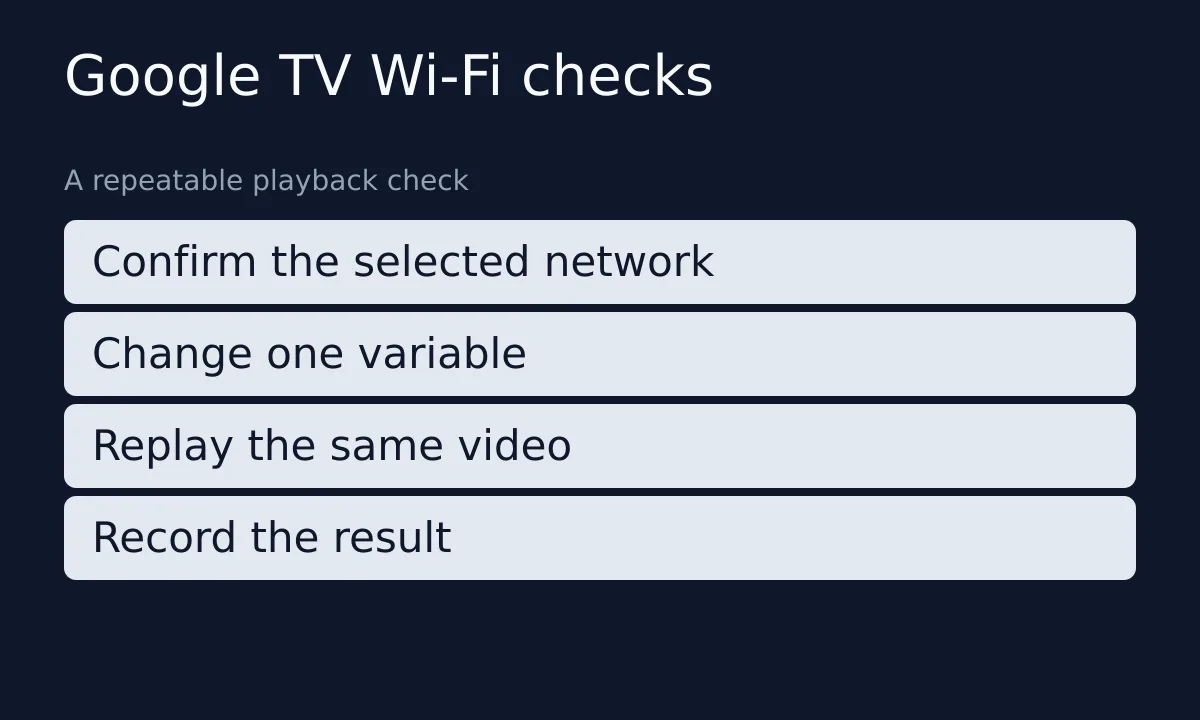
Wi-Fi buffering on Google TV: start with a playback check
Choose a video you can return to and note what happens: a loading spinner during playback, an app that will not open, or a message saying the device is offline. Keep a short record of the device, app, network and symptom. Your aim is to find which change makes a difference, rather than change several settings and lose track of the result.
This guide covers Wi-Fi buffering on Google TV using home-network checks documented for Google’s streaming devices. It does not promise to fix every interruption. Work through the relevant checks and keep a record of what changes before deciding whether you need device, network or app support.
Separate a connection problem from a slow device
First, identify the symptom before choosing a remedy. Compare another video in the same app, then a video in another app, while keeping the device and network unchanged. This is a diagnostic comparison: a different outcome narrows your next question, but it does not establish a single cause.
- Playback pauses, but navigation responds: begin with the connection checks below and record whether they change playback.
- The device reports that it is offline: check the selected network before changing an app setting. Google’s streaming-device connection guide includes offline messages among the symptoms it addresses.
- Menus and apps are slow as well: use Google’s slow-device troubleshooting instructions alongside your playback notes. That guide addresses slow startup, delayed responses and apps taking a long time to open.
For example, if only one app has a problem, ask its support team what to check next. If several apps behave differently after moving the device, keep that observation for the network investigation. These examples are suggested ways to organize your checks, not claims about tests performed on your equipment.
Wi-Fi buffering on Google TV: 5 connection checks
Confirm the network before changing it
Open the Google TV settings and look under Network & Internet. Google’s device troubleshooting guide says to make sure wireless networking is enabled and the intended network is selected. Check the displayed network name rather than assuming the device is connected to the network you expected.
Restart the streaming device
For Chromecast troubleshooting, Google says to disconnect the power cable, wait 3 seconds, and reconnect it. This instruction comes from the connection guide. Use the documented restart procedure for your particular device, then repeat the original playback check.
Test placement and the available wireless band
Google recommends moving a streaming device away from the television and nearby devices, wires or cables to help reduce interference. Try a practical position change, then repeat your playback check before making another adjustment.
If your router supports both bands, Google’s connection guide recommends using its 5 GHz network. Treat that as a comparison to try on supported hardware, not a guarantee that a particular band will solve your problem. Note which network was selected before the change so you can return to it if necessary.
Compare a wired connection when supported
A wired comparison can help you investigate Wi-Fi buffering on Google TV. Chromecast with Google TV supports Ethernet through a suitable adapter rather than a built-in Ethernet socket. Google’s connection guide documents the adapter option. Check the compatibility information for your exact model before buying or connecting an adapter; do not assume that every Google TV television or accessory has the same ports.
Check device updates separately
Google’s general troubleshooting guide directs Google TV users to check for available system updates. Follow the update instructions for your model, allow the update to finish, and repeat the playback check. Keep this separate from the placement or network-band comparison so your notes remain useful.
Record what changed, not just whether playback resumed
After each step, return to the original app and video. Record the change you made, whether the symptom returned and whether another app behaved differently. If you can, repeat the comparison before deciding that a single successful playback means the issue is resolved.
A useful support note might read: “The same video paused before the restart and paused again afterward; another app played normally.” That is a hypothetical example, not a measured result. Your own observations are more useful than a claim that a particular setting always prevents buffering.
If Wi-Fi buffering on Google TV stops, keep the record of the working arrangement. If it returns, you will have a clear account of what you already tried instead of repeating every change from the beginning.
Know when to stop changing settings
If the checks do not resolve the issue, send your notes to the device manufacturer, app support team or network support team most relevant to the remaining symptom. Include your model, app, connection type and the changes you actually tested. Avoid presenting an untested guess as a confirmed fault.
If you are a customer and need help with your service or account after investigating Wi-Fi buffering on Google TV, use our contact page to find the relevant contact options. Include your playback notes so the recipient can see what you already tried.
Do not make a factory reset your first diagnostic step. Google warns that a factory reset erases the device’s data and recommends trying other troubleshooting steps first. Review the manufacturer’s instructions and the consequences before considering it.
These checks are based on the linked Google documentation, with a suggested method for recording and comparing results. They are not a hands-on test of your device, a guarantee of uninterrupted streaming, or a recommendation to replace your current provider.